

Appearance
Connecting Your RSS Feed
To use PodcasterPlus Blocks, you first need to tell it where to find your podcast episodes. You do this by connecting your podcast's RSS feed. This is a vital step, as the plugin pulls all episode data directly from the feed.
Prerequisites:
- PodcasterPlus Blocks plugin installed and activated.
- Your valid podcast RSS feed URL. Need help finding it? RSS Lookup is a free tool to find RSS feeds on any URL, and Cast Feed Validator checks that a podcast feed is valid.
Steps to connect your RSS feed
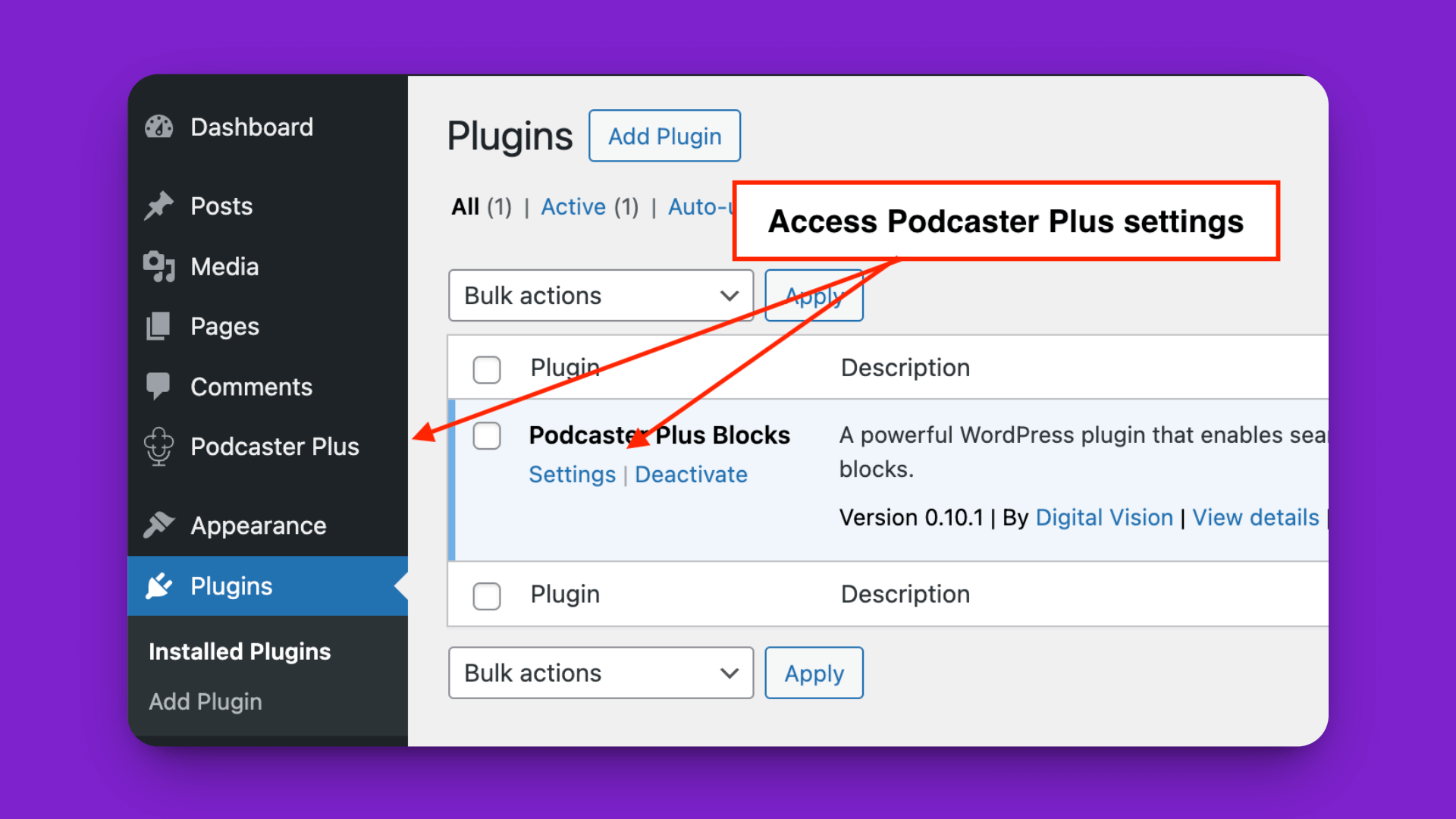
- Open Settings: go to the PodcasterPlus settings page in your WordPress admin dashboard. It is a top-level PodcasterPlus menu item.
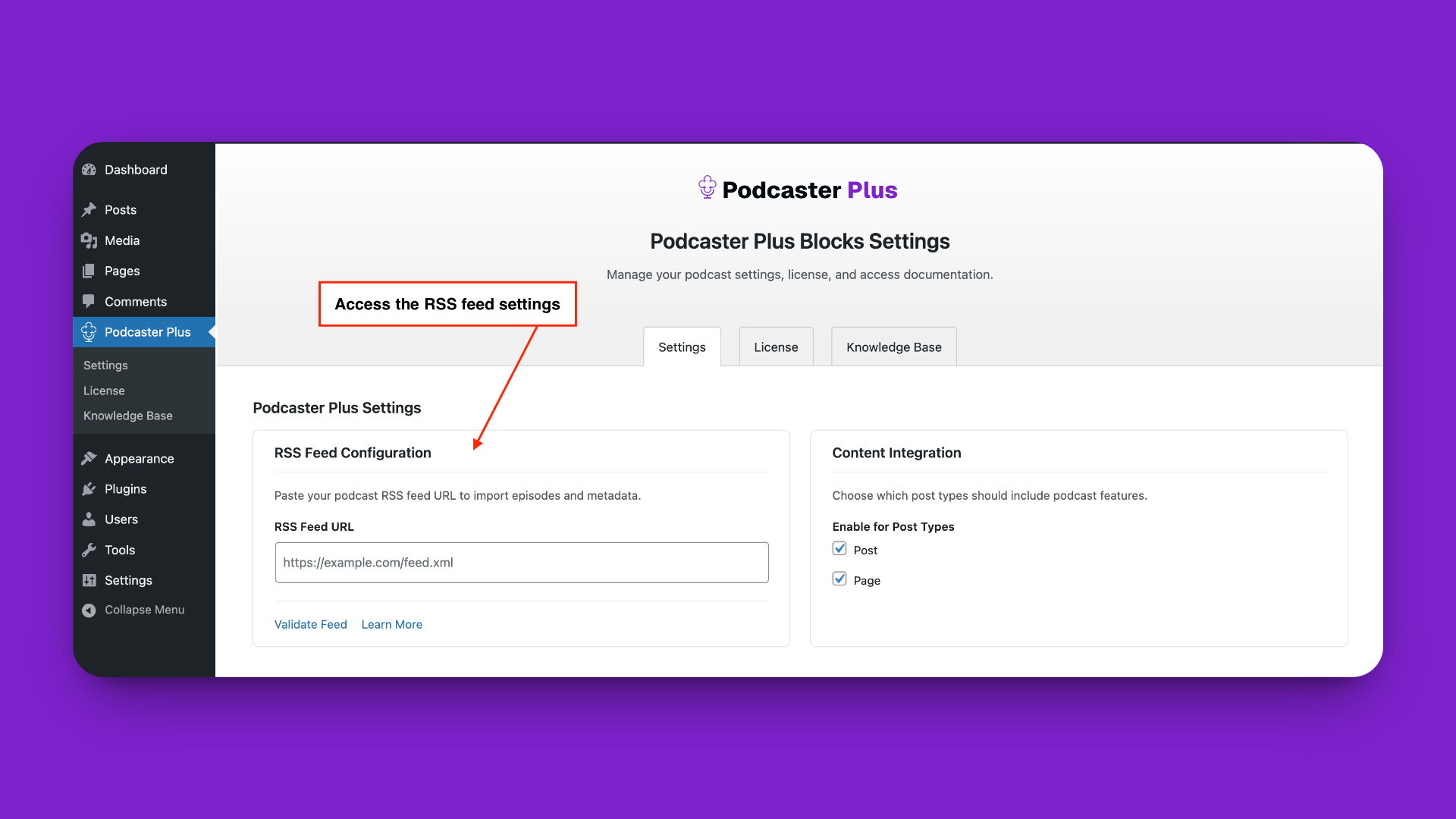
- Find the RSS feed field: locate the input field labelled RSS Feed URL on the settings page.
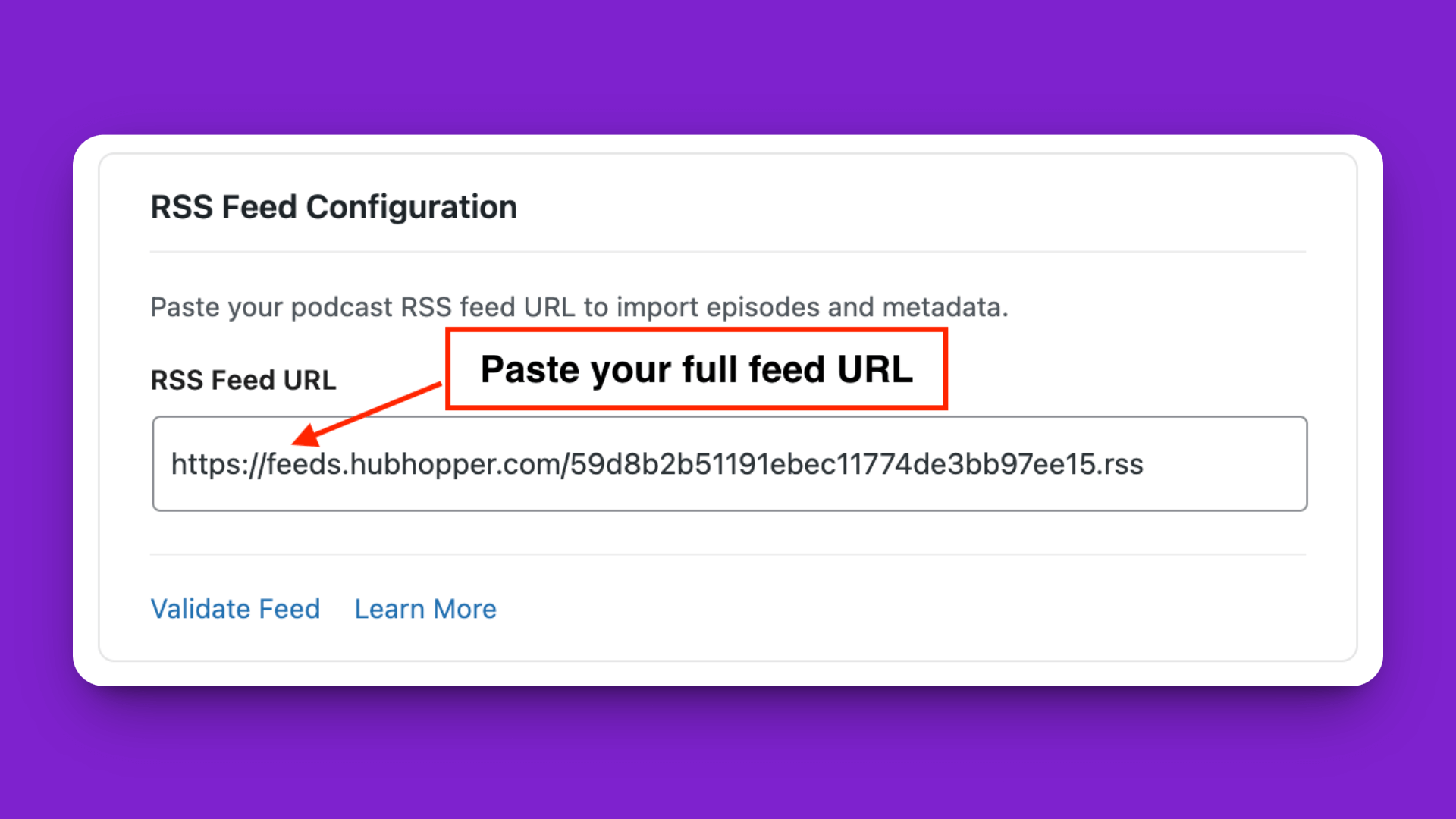
- Enter your feed URL: carefully copy your entire podcast RSS feed URL and paste it into the field. Make sure it includes
http://orhttps://.
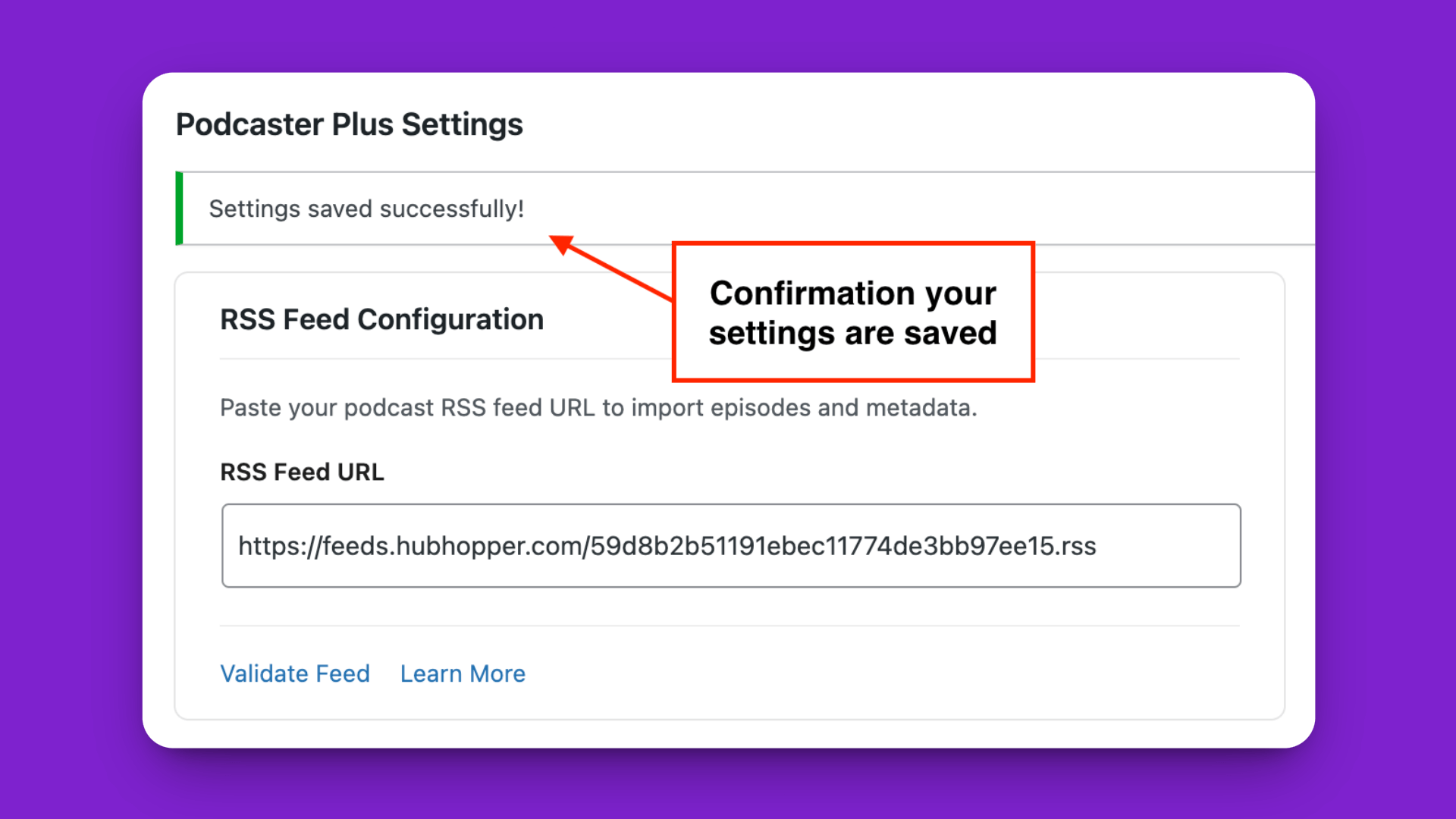
- Confirm it saved: PodcasterPlus settings save automatically. Once you enter a new RSS URL, you see the message "Settings saved successfully!"
Your PodcasterPlus Blocks plugin is now connected to your podcast and can fetch your latest episodes and their details.
Video tutorial
Troubleshooting
- Invalid feed error: double-check that you copied the exact URL. Try validating your feed with an external tool like Cast Feed Validator.
- Unable to connect: make sure your website's server can reach the feed URL. If you self-host the feed, check for firewall issues.
What's next?
- Quick Start: Add Your First Episode: add an episode to a post or page.