
Skip to content
PodcasterPlus PodcasterPlus
Guest network Workflows Hosting Pricing
Sign in Start free
Booking Links One link for guests to pick a time, fill the form, and prep. Show Notes New Real-time prep doc with shared, host-only, and guest-private lenses. Automations Trigger reminders, posts, and follow-ups on episode events. Templates New Reusable email and show-note templates with live magic tags. Transcriptions AI transcripts with speaker tags, ready to edit and ship. Magic Tags New Dynamic placeholders that fill in guest, show, and episode data.
Spotlight · Automations

Replace twelve Zaps with one workflow.

Watch a PodOps team move from manual outreach to a hands-off pipeline in under five minutes.

Guest confirms time09:14
Calendar invite sent09:14
Prep email queued+ 2d
Reminder & briefing+ 1h
Watch the 90-second demo
Building a podcast network? See how teams scale with PodcasterPlus. Compare all features
Features
Booking Links One link for guests to pick a time, fill the form, and prep. Show Notes New Real-time prep doc with shared, host-only, and guest-private lenses. Automations Trigger reminders, posts, and follow-ups on episode events. Templates New Reusable email and show-note templates with live magic tags. Transcriptions AI transcripts with speaker tags, ready to edit and ship. Magic Tags New Dynamic placeholders that fill in guest, show, and episode data.
Guest network Workflows Hosting Pricing
Sign in Start free - no card
  • Home
  • PodcasterPlus Docs
  • Blocks
  • Getting Started
  • Quick Start Guide – Add Your First Episode
An icon representing a document

Getting Started

3
  • Quick Start Guide – Add Your First Episode
  • Installation & Activation
  • Connecting Your RSS Feed
An icon representing the PodcasterPlus WordPress Blocks

Block Settings

9
  • Play Button Block User Guide
  • Volume Control Block User Guide
  • Playback Speed Block User Guide
  • Skip Controls User Guide (Skip Forward & Skip Backward)
  • Progress Bar Block User Guide
  • Episode Title Block User Guide
  • Episode Image Block User Guide
  • Episode Description Block User Guide
  • Container Block User Guide
an icon representing a person reading a book

Block Components

6
  • Spacing Settings User Guide
  • Sizing Settings User Guide
  • Shadow Settings User Guide
  • Layout Settings User Guide
  • Display Settings User Guide
  • Border Settings User Guide
View Categories

Quick Start Guide – Add Your First Episode

2 min read

This guide will get you up and running quickly by walking you through adding your first podcast episode to a WordPress post or page using PodcasterPlus Blocks.

Goal: Insert an episode with a pre-designed player in under 5 minutes.

Prerequisites:

  • PodcasterPlus Blocks plugin installed and activated.
  • Your Podcast RSS Feed successfully connected in the plugin settings.

Let’s Add an Episode: #

  1. Create Content: Start a new Post or Page in WordPress (Posts -> Add New or Pages -> Add New).
  2. Launch Episode Selector: In the WordPress Block Editor Settings Panel (usually on the right). Click the button labelled Select Podcast Episode. This opens the Episode Selector modal window.
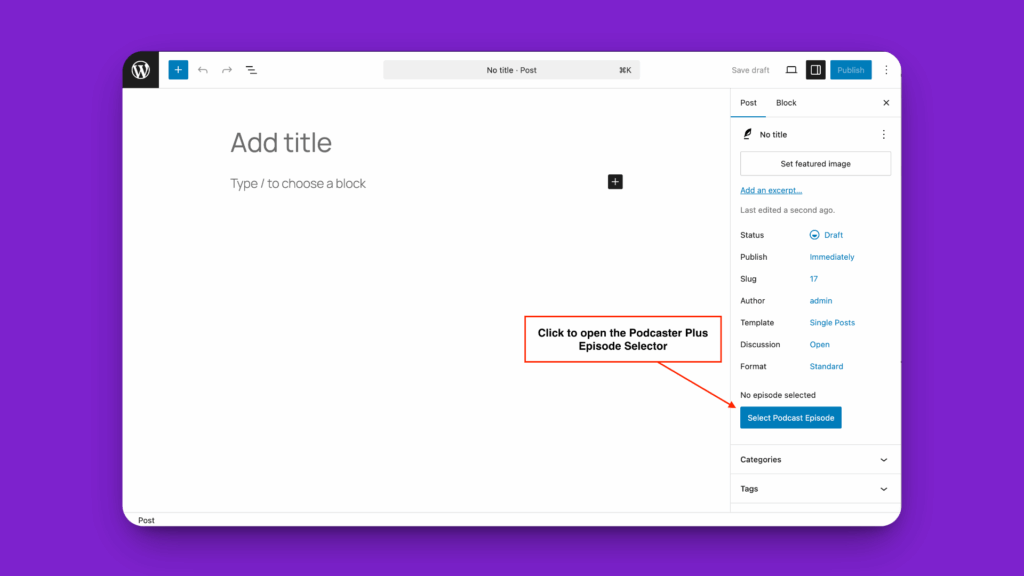
WordPress Editor screen showing the PodcasterPlus Blocks "Episode Selector" setting.
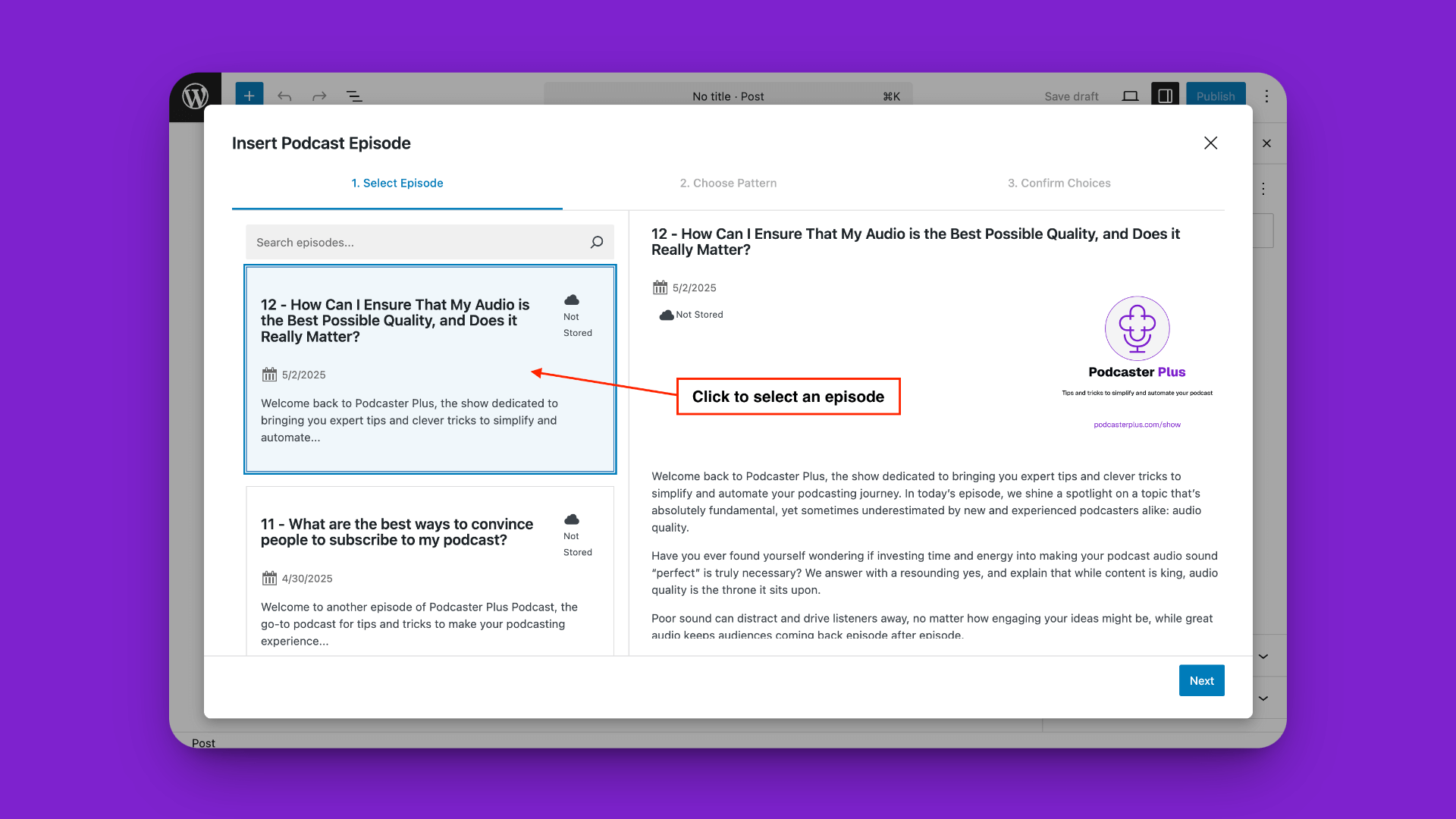
  1. Step 1: Select an Episode:
    • The modal will load episodes from your connected RSS feed.
    • Browse or search for the episode you want to insert.
    • You can view the Title, Description, Image, and even listen to a preview of the audio directly within the modal.
    • Click on the desired episode to select it.
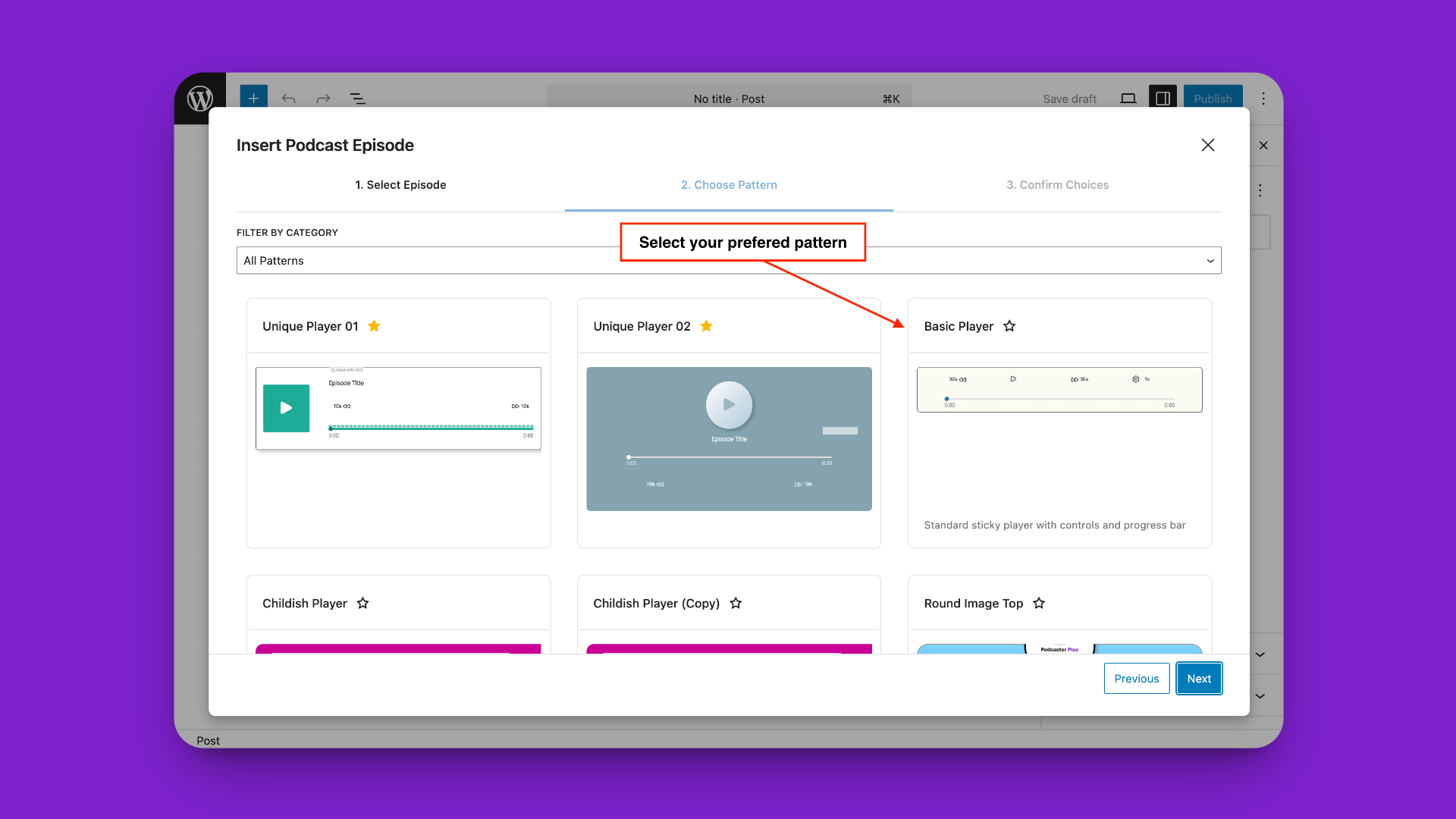
  1. Step 2: Choose a Player Pattern:
    • You’ll now see a selection of pre-made player layouts (Patterns) built with PodcasterPlus Blocks.
    • Scroll through the available patterns. You can also mark patterns as Favourites (using the star icon) to have them appear first in the future.
    • Click on the pattern you’d like to use for this episode.
  1. Step 3: Insertion Options:
    • Decide if you want the plugin to automatically:
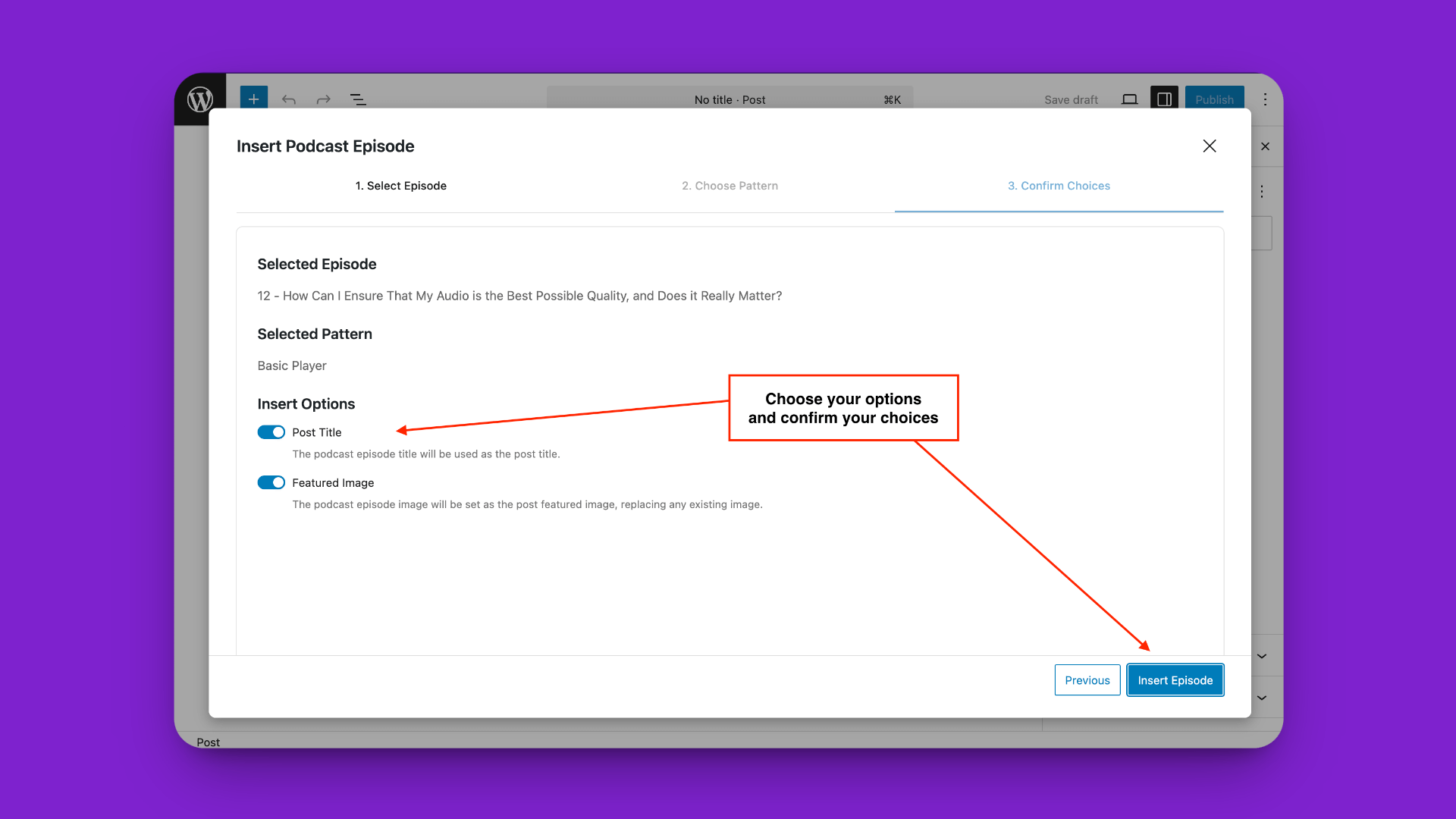
      • Set the Post Title to the Episode Title.
      • Set the Featured Image to the Episode Image.
    • Check the boxes according to your preference.
    • Click the Insert Episode button.
  1. Content Inserted: The modal will close, and the selected pattern, populated with the chosen episode’s data (Title, Description, Image, Player), will be inserted into the Block Editor.
  2. Publish/Preview: You can now further edit the post content if needed (the inserted content uses standard core blocks wrapped by ours, so it’s editable!) or simply Publish or Preview your post.

Congratulations! You’ve successfully added a podcast episode to your content using PodcasterPlus Blocks.

Video Tutorial: #

Watch a video tutorial outlining the steps shared in this doc

What’s Next? #

  • Explore the individual blocks: Blocks Reference
  • Learn about customising player appearance: Using & Creating Patterns
  • Dive deeper into styling: Styling & Theming
Updated on September 2, 2025

What are your Feelings

  • Happy
  • Normal
  • Sad
Connecting Your RSS FeedInstallation & Activation
Table of Contents
  • Let's Add an Episode:
  • Video Tutorial:
  • What's Next?
PodcasterPlus PodcasterPlus

PodcasterPlus: enabling podcasters to focus on creating great content by automating everything else.

Product
  • Hosting
  • Workflows
  • Guest Network
  • Booking Links
  • Show notes
  • Transcripts
  • Automations
  • Templates
  • Magic tags
Company
  • About
  • Customers Coming
  • Careers Coming
  • Podcast
  • Press Coming
  • Manifesto
Resources
  • Blog
  • Changelog Coming
  • Help centre
  • Migration guides Coming
  • API docs Coming
  • FAQs
Blocks
  • Downloads & licenses
  • Documentation
Legal
  • Legal centre
  • Terms
  • Privacy
  • Acceptable use
  • DPA Coming
© 2026 PodcasterPlus - All rights reserved.
Status: all systems normal · v0.9.4